
Order
An order represents a request by a customer to purchase certain goods or services (a.k.a Product) . The system is able to create order based on instructions given by customer within a conversation. Users may also create orders via Admin Portal.
Access
Orders > Order
Requirements
Access to Order Resource
Properties
Basic Information
Customer* - The customer who place this order
Project* - The project this order belongs to
Order Type* - Booking or Normal
Status* - Please refer to Order Status section
Order Summary
Currency* - Order’s currency
Adjustment Amount - System calculated adjustment amount to keep order’s amount non-negative
Order Amount - System calculated total order amount
Shipping Method - Shipping method for this order (optional)
Shipping Amount - Shipping price calculated for the selected Shipping Method, or manually override by user
Access Control
Mode* - Allow All or Restricted
Assign To - The user or user group to be able to access to this order (Applicable when mode = Restricted)
Shipping Address - Shipping address (Applicable when Shipping Method or Shipping Amount is set)
Product Items
Description - User entered description
Product Name - Normal Product correspond to this line item
Qty* - Quantity of the line item
Unit Price - Unit price of the line item in order’s currency. When a product is selected, it’s price will apply automatically, user may manually override
Booking Items (Applicable for Type = Booking)
Booking Date - Date and time of the schedule
Description - User entered description
Duration - Booking duration in minutes or hours
Product Name - Booking Product correspond to this line item
Qty* - Quantity of the line item
Unit Price - Unit price of the line item in order’s currency. When a product is selected, it’s price will apply automatically, user may manually override
Discounts (Automatically calculated)
Description - Discount description
Qty* - Quantity of the line item
Unit Price - Unit price of the discount in order’s currency
Invoice - Invoices generated for this order
Actions
View Conversation - If an order is created from a conversation, user may view the conversation by clicking Action > View Conversation
Create Invoice - User can download the invoice (pdf) and generate a payment link once an invoice has been finalized
Order Status
CREATED - order in draft state and not yet submitted
SUBMITTED - order submitted by customer to the user
ACCEPTED - order accepted by user
PAID - order has been paid by customer
PROCESSING - user preparing the order for fulfillment
SHIPPED - user has shipped the order
COMPLETED - order successfully fulfilled
CANCELLED - order no longer needed and has been cancelled by user or customer
Status Transition for Administrator
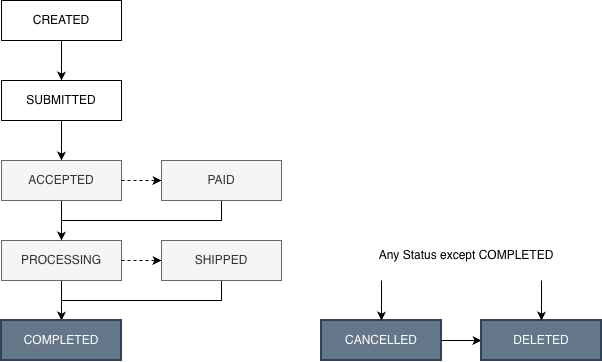
Status transitions allowed for administrator via Admin Portal. Statuses in light grey color indicates Order has been finalized
Status Transition for Customer
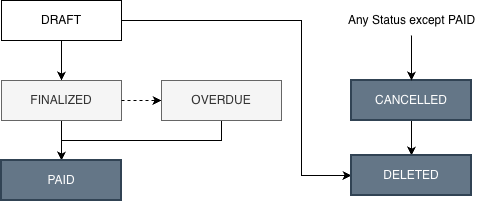
Status transitions allowed for Customer to perform via conversation
Discount Calculation
Discounts will automatically be calculated and assigned to the order when an order is updated in the Admin Portal. This allows users to visualize what discount items are applicable for the current order items.
Discount items appear in an Order may change before an Order has been finalized
Remarks
Negative order amount will automatically adjust to 0 to prevent order being negative, indicate in the Adjustment Amount field
Customers may cancel their order before entering PROCESSING state
A lock icon is displayed next to the page title when the Order has been finalized and can no longer alter it’s amount
Related Topics
Discount rules can be defined at Products > Discount
If product’s currency is differ from the order’s, rate conversation will be calculated based on the exchange rates at Products > Exchange Rate